
)
Shipping
Collection
Shipping with a Pre-Purchased Label
1. Frank your parcel:
Purchase a shipping label via DHL Online Frankierung or in the Post & DHL App.
2. Drop off your parcel:
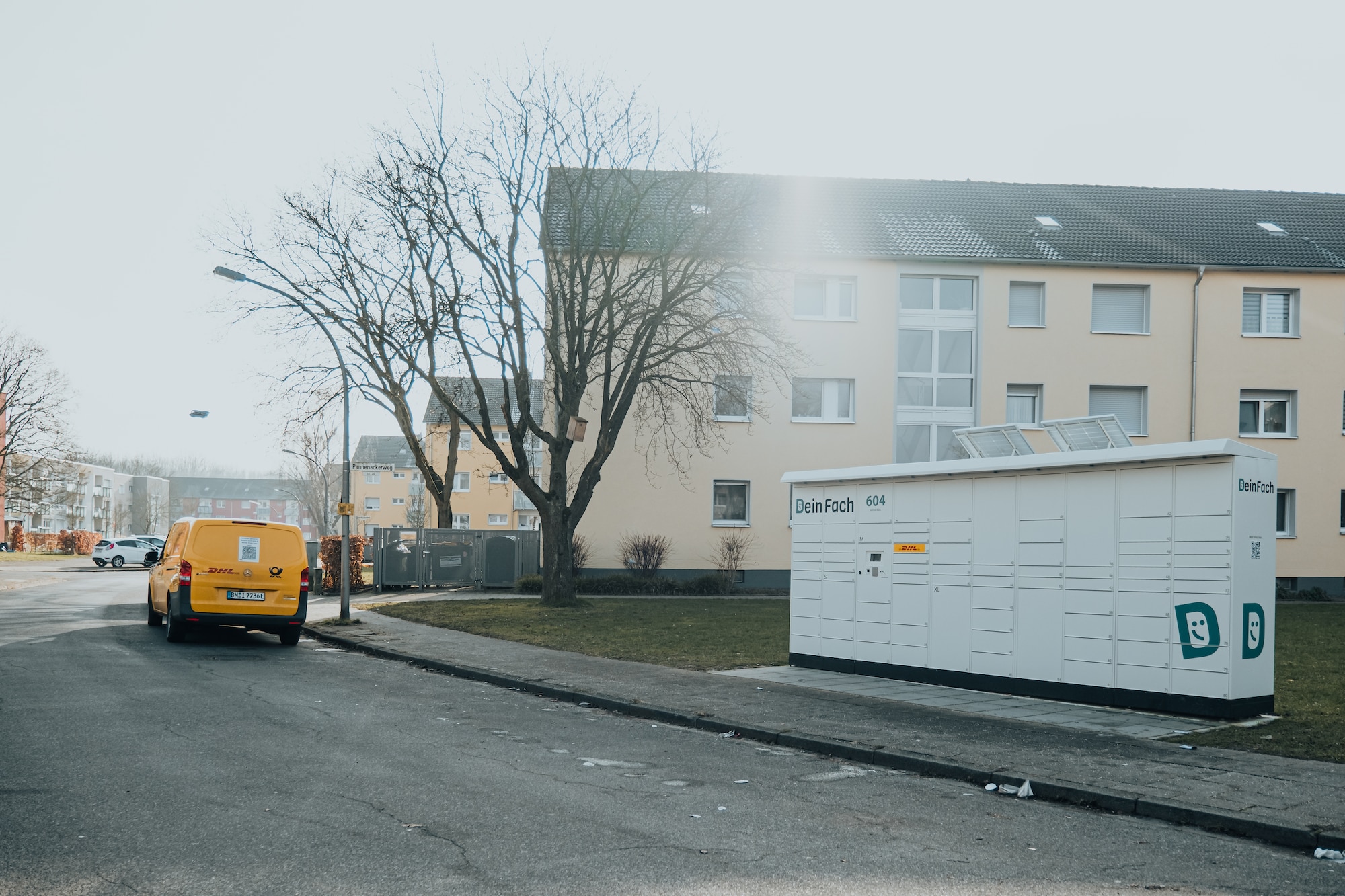
If available, press the wake-up button on the DeinFach locker.
The display will show the options "Versenden" [Shipping] and "Abholen" [Collection]. The locker is now active and can be operated either directly via the display or through the app, similar to a lean parcel locker.
You have two options for sending your parcel:
Option 1) Directly at the locker:
Select "Versenden" [Shipping] > "DHL" on the Display and follow the instructions shown on the screen.
Option 2) Via the Post & DHL App:
Open the Post & DHL App and select "Packstation" [parcel locker] > "Versenden" [Shipping] and follow the instructions in the app. Scan the barcode on your shipping label or use your mobile label from "Meine Marken" section of the app.
If you have not yet installed the app, additional information is available on the locker display under "Versenden" > "DHL".
Once the compartment opens, place your parcel inside and close the door. That's it! All further information and receipts can be found in the app.
Please note: DeinFach lockers do not have a printer. If you have not printed and attached the shipping label yourself, the DHL delivery driver will print and apply the label after collecting the parcel.
Return
1. Have your QR Code ready or attach the return label:
You will receive your return label from the online retainer, usually as a QR Code by email or included with your shipment. Save the QR Code in the Post & DHL App under Meine Marken.
2. Drop off your return:
If available, press the wake-up button on the DeinFach locker.
The display will show the options "Versenden" [Shipping] and "Abholen" [Collection]. The locker is now active and can be operated either directly via the display or through the app, similar to lean parcel locker.
You have two options for returning your parcel:
Option 1) Directly at the locker:
Select "Versenden" [Shipping] > "DHL" on the display and follow the instructions shown on the screen. Additional information will be displayed throughout the process.
Option 2) Via Post & DHL App:
Open the Post & DHL App, select “Packstation” [parcel locker] > “Versenden” [Shipping] and follow the instructions in the app. Scan the barcode of your return label or use your mobile label from "Meine Marken" section of the app. If you do not have the app, additional guidance is available on the locker under "Versenden" > "DHL".
Once the compartment opens, place your return parcel inside and close the door. That's it!
Please note: DeinFach lockers do not have a printer. If you have not printed and attached the label yourself, the DHL driver will print and apply the label after collecting the parcel.
Adressing a shipment to a DeinFach locker
You can easily collect your DHL parcels at a DeinFach locker by having them delivered directly to a specific locker location.
1. Address your shipment just like a DHL Packstation delivery:
In addition to your first and last name, enter your personal Post Number in the Adress Line 2 field. You can find your Post Number in your DHL customer account at www.dhl.de or in the Post & DHL App. If there is no Adress Line 2 field available, simply add your Post Number after your last name, separated by a space.
In the Street field, enter "DeinFach" and in the House Number field, enter the three-digit number of your preferred locker (e.g. 604).
Enter the postal code and city of your selected DeinFach locker location.
2. Collect your shipment:
If available, press the wake-up button on the DeinFach locker.
The display will show the options "Versenden" [Shipping] and "Abholen" [Collection]. The locker is now active and can be operated either directly via the display or through the app, similar to a lean parcel locker.
You have two options for collecting your shipment:
Option 1) Directly at the locker:
Select "Abholen" [Collection] > "DHL" on the display and follow the instructions shown on the screen.
Option 2) Via Post & DHL App:
Open the Post & DHL App, select "Packstation” [parcel locker] > “Abholen” and choose the shipment you would like to collect. Follow the instructions provided in the app.
If you do not yet have the app, additional guidance is available on the locker display under "Abholen" > "DHL".
The compartment will open, allowing you to collect your parcel. Enjoy!
For more information about DHL direct adressing, click here
Redirect a shipment to a DeinFach locker
Not going to be home? Redirect your shipment with ease.
As a registered DHL customer, you can redirect parcels adressed to your home to a different delivery location. Simply set up parcel redirection in your DHL customer account or in the Post & DHL App.
You can choose a one-time redirection or set up a permanent delivery preference up until your parcel has been loaded onto the delivery vehicle. Your parcels will then be automatically redirected to your preferred DeinFach locker.
The pickup location can be changed at any time via dhl.de or in the Post & DHL App under "Track Shipment", where you can also adjust your redirection settings.
1. Collect your shipment:
If available, press the wake-up button on the DeinFach locker.
The display will show the options "Versenden" [Shipping] and "Abholen" [Collection]. The locker is now active and can be operated either directly via the display or through the app, similar to a lean parcel locker.
You have two options for collecting your shipment:
Option 1) Directly at the locker:
Select "Abholen" [Collection] > "DHL" on the display and follow the instructions shown on the screen. Additional information will be displayed throughout the process.
Option 2) Via Post & DHL App:
Open the Post & DHL App, select "Packstation” [parcel locker] > “Abholen” and choose the shipment you would like to collect. Follow the instructions provided in the app.
If you do not yet have the app, additional guidance is available on the locker display under "Abholen" > "DHL".
The compartment will open, allowing you to collect your parcel. Enjoy!
Click here for more information about DHL parcel redirection.
Collection with a pickup code
Whether you have received a digital notification with a pickup code by email or a pickup notification card in your mailbox, you can easily collect your parcel from a DeinFach locker.
You can use either the Post & DHL App or the locker display.
With a digital Pickup Code (Email):
- Using the App: Open the Post & DHL App when you are standing in front of the DeinFach locker. Open the email and select "Sendung abholen" [Collect Parcel]. You will be redirected to the app, which will automatically connect to the DeinFach locker. Follow the instructions in the app and scan your pickup code when prompted.
- Using the locker display: Select "Abholen" > "DHL" on the display and follow the instructions until you are asked to scan the pickup code from your email.
With a Pickup Notification Card:
- Using the App: Open the Post & DHL App, when you are standing in front of the DeinFach locker. In the "Packstation" section, select "Abholen" > "Benachrichtigungskarte scannen" [Scan Notification card] and then confirm "Yes" when asked whether you are using a lean parcel locker.
- Using the locker display: Select "Abholen" > "DHL" on the display and follow the instructions until you are asked to scan the pickup code from your notification card.
Collecting your parcel is simple and flexible - whether you use the app or the locker display.
Versand
Versand mit gekaufter Marke
1. Frankiere Deine Sendung:
Kaufe eine Versandmarke unter DHL Online Frankierung oder in der Post & DHL App.
2. Lege Deine Sendung ein:
Wenn vorhanden: drücke den “Wake-Up-Button” am DeinFach Automaten.
Auf dem Display erscheinen die Optionen “Versenden” und “Abholen” - der Automat ist nun aktiv und kann entweder am Display oder, wie eine appgesteuerte Packstation, per App bedient werden.
Du hast jetzt zwei Möglichkeiten, Deine Sendung zu verschicken:
1) Direkt am Automaten:
Wähle auf dem Display "Versenden" > DHL und folge den Anweisungen. Weitere Infos werden Dir auf dem Display angezeigt.
2) Über die Post & DHL App:
Öffne die Post & DHL App, wähle “Packstation” > “Versenden” und folge den Anweisungen in der App. Scanne den Barcode Deines Paketlabels oder nutze Deine Mobile Marke aus dem App-Bereich "Meine Marken". Falls Du die App noch nicht hast, findest Du weitere Infos auf dem Automatendisplay, wenn Du auf “Versenden“ > “DHL” tippst.
Dein Fach öffnet sich, Sendung einlegen – voilà! Alle weiteren Infos und Belege findest Du in der App.
Hinweis: DeinFach Automaten haben keinen Drucker. Falls Du die Marke nicht selbst ausgedruckt und aufgeklebt hast, übernimmt der/die DHL Zusteller:in den Druck der Versandmarke nach Entnahme.
Retoure
1. Halte den QR-Code bereit oder klebe das Retouren-Label auf:
Dein Retourenlabel erhältst Du vom Online-Händler (meist als QR-Code per Mail oder es liegt Deiner Sendung bereits bei). Speichere den QR-Code in Deiner Post & DHL App unter Meine Marken.
2. Lege Deine Retoure ein:
Wenn vorhanden: drücke den “Wake-Up-Button” am DeinFach Automaten.
Auf dem Display erscheinen die Optionen “Versenden” und “Abholen” - der Automat ist nun aktiv und kann entweder am Display oder, wie eine appgesteuerte Packstation, per App bedient werden.
Du hast jetzt zwei Möglichkeiten, Deine Retoure zu verschicken:
1) Direkt am Automaten:
Wähle auf dem Display "Versenden" > DHL und folge den Anweisungen. Weitere Infos werden Dir auf dem Display angezeigt.
2) Über die Post & DHL App:
Öffne die Post & DHL App, wähle “Packstation” > “Versenden” und folge den Anweisungen in der App. Scanne den Barcode Deines Retourenlabels oder nutze Deine Mobile Marke aus dem App-Bereich "Meine Marken". Falls Du die App noch nicht hast, findest Du weitere Infos auf dem Automatendisplay, wenn Du auf “Versenden“ > “DHL” tippst.
Dein Fach öffnet sich, Sendung einlegen – Deine Retoure ist unterwegs! Alle weiteren Infos und Belege findest Du in der App.
Hinweis: DeinFach Automaten haben keinen Drucker. Falls Du das Label nicht selbst ausgedruckt und aufgeklebt hast, übernimmt der/die DHL Zusteller:in den Druck des Labels nach Entnahme.
Abholung
Sendung an DeinFach adressieren
Du kannst Deine DHL-Sendungen ganz einfach an einem DeinFach Automaten abholen, indem Du sie an einen bestimmten Automaten adressierst.
1. Adressiere Deine Sendung so wie bei der DHL-Packstation:
Neben Deinem Vor- und Nachnamen benötigst Du im Feld "Adresszusatz" Deine persönliche Postnummer. Diese findest Du in Deinem Kundenkonto unter www.dhl.de oder auch in der Post & DHL App. Fehlt das Feld "Adresszusatz", kannst Du Deine Postnummer auch einfach durch ein Leerzeichen getrennt hinter Deinen Nachnamen schreiben.
In das Feld "Straße" trägst Du "DeinFach” und in das Feld "Hausnummer" die dreistellige Nummer Deines gewünschten DeinFach Automaten ein (z.B. 604).
Trage die Postleitzahl und den Ort des gewünschten DeinFach Automaten ein.
2. Hole Deine Sendung ab:
Wenn vorhanden: drücke den "Wake-Up-Button" am DeinFach Automaten.
Auf dem Display erscheinen die Optionen “Versenden” und “Abholen” - der Automat ist nun aktiv und kann entweder am Display oder, wie eine appgesteuerte Packstation, per App bedient werden.
Du hast jetzt zwei Möglichkeiten, Deine Sendung abzuholen:
1) Direkt am Automaten:
Wähle auf dem Display "Abholen" > DHL und folge den Anweisungen. Weitere Infos werden Dir auf dem Display angezeigt.
2) Über die Post & DHL App:
Öffne die Post & DHL App, wähle “Packstation” > “Abholen” und dann die Sendung aus, die Du abholen möchtest. Folge dann den weiteren Anweisungen in der App. Falls Du die App noch nicht hast, findest Du weitere Infos auf dem Automatendisplay, wenn Du auf "Abholen" > "DHL" tippst.
Dein Fach öffnet sich und Du kannst Deine Sendung entnehmen. Viel Spaß damit!
Hier findest Du weitere Infos zur DHL Direktadressierung.
Sendung an DeinFach umleiten
Nicht zuhause? So leitest Du Deine Sendung um.
Als registrierte:r DHL-Kund:in kannst Du Pakete, die an Deine Adresse versendet werden, flexibel umleiten. Stelle dafür in Deinem Kundenkonto oder der Post & DHL App die Paketumleitung ein.
Bis Deine Sendung im Zustellfahrzeug liegt, kannst Du die Umleitung einmalig auswählen oder als dauerhaft festlegen. Deine Pakete werden dann automatisch zu Deinem DeinFach Automaten umgeleitet. Der Abholort kann manuell auf www.dhl.de oder in der Post & DHL App unter “Sendung verfolgen” geändert und die Umleitung angepasst werden.
1. Hole Deine Sendung ab:
Wenn vorhanden: drücke den "Wake-Up-Button" am DeinFach Automaten.
Auf dem Display erscheinen die Optionen “Versenden” und “Abholen” - der Automat ist nun aktiv und kann entweder am Display oder, wie eine appgesteuerte Packstation, per App bedient werden.
Du hast jetzt zwei Möglichkeiten, Deine Sendung abzuholen:
1) Direkt am Automaten:
Wähle auf dem Display "Abholen" > DHL und folge den Anweisungen. Weitere Infos werden Dir auf dem Display angezeigt.
2) Über die Post & DHL App:
Öffne die Post & DHL App, wähle “Packstation” > “Abholen” und dann die Sendung aus, die Du abholen möchtest. Folge dann den weiteren Anweisungen in der App. Falls Du die App noch nicht hast, findest Du weitere Infos auf dem Automatendisplay, wenn Du auf "Abholen" > "DHL" tippst.
Dein Fach öffnet sich und Du kannst Deine Sendung entnehmen. Viel Spaß damit!
Hier findest Du weitere Infos zur DHL Paketumleitung.
Abholung mit Benachrichtigungscode
Egal, ob Du eine digitale Benachrichtigung mit Abholcode per E-Mail oder eine Benachrichtigungskarte im Briefkasten erhalten hast – so kannst Du Deine Sendung ganz einfach bei DeinFach abholen.
Nutze dafür entweder die Post & DHL App oder den Display am Automaten.
Mit digitalem Code (E-Mail):
- Mit App: Öffne die Post & DHL App, wenn Du vor dem DeinFach Automaten stehst. Öffne die E-Mail und klicke auf "Sendung abholen". Du wirst in die App geleitet und von da automatisch mit dem DeinFach Automaten verbunden. Folge dann den weiteren Anweisungen in der App bis zum Scan des Abholcodes.
- Am Automaten: Tippe auf dem Display auf "Abholen" > "DHL" und folge den Anweisungen bis zum Scan Deines Abholcodes aus der E-Mail.
Mit Benachrichtigungskarte:
- Mit App: Öffne die Post & DHL App, wenn Du vor dem DeinFach Automaten stehst. Wähle in der App im Bereich "Packstation" "Abholen" > "Benachrichtigungskarte scannen" und klicke anschließend auf "Ja" bei der Frage nach der App-gesteuerten Packstation.
- Am Automaten: Tippe auf dem Display auf "Abholen" > "DHL" und folge den Anweisungen bis zum Scan Deines Abholcodes von der Benachrichtigungskarte.
So funktioniert die Abholung einfach und flexibel – mit App oder direkt am Automaten.